E-Way Bill Login: Complete Guide to Portal, Registration & GST Compliance (2025-26)
If you have ever tried to log in to the e-Way Bill portal and felt confused about where to go, what to enter, or why the portal is not working, you are not alone. Thousands of business owners, accountants, and transporters across India face the same questions every day. This guide covers everything you need to know about e-Way Bill login, registration, generation, printing, cancellation, and compliance all in one place, explained simply.
What is an E-Way Bill?
An e-Way Bill is an electronic document that must be generated before transporting goods from one place to another in India. It works as a digital pass that tells the government what goods are being moved, by whom, in which vehicle, and to which destination. Without this document, a transporter cannot legally move goods valued above Rs. 50,000 on Indian roads.
The system was introduced under the GST (Goods and Services Tax) framework and is managed by the National Informatics Centre (NIC) on behalf of the Government of India. It replaced the old paper-based waybill system and made goods tracking much faster and more transparent.
Full Form of EWB
EWB stands for Electronic Way Bill. It is also written as e-Way Bill, eWay Bill, or E-Way Bill. All these terms refer to the same document.
What is an E-Way Bill Number (EBN)?
Once you generate an e-Way Bill on the portal, the system automatically assigns a unique 12-digit number called the E-Way Bill Number or EBN. This number is shared with the supplier, recipient, and transporter. It is used to track the shipment, verify compliance, and avoid duplication.
Why the Government Made E-Way Bill Mandatory
Before the e-Way Bill system, goods were often transported without proper documentation, making it easy to evade taxes. The e-Way Bill system creates a digital trail for every consignment, making tax evasion extremely difficult. It also benefits honest businesses by speeding up goods movement and reducing checkpost delays.
E-Way Bill Portal 1 vs E-Way Bill Portal 2
As of July 1, 2025, the government now operates two official portals for e-Way Bill generation:
- Portal 1: ewaybillgst.gov.in the original, primary portal
- Portal 2: ewaybill2.gst.gov.in launched July 2025 as a backup to avoid downtime
Both portals are synced in real time. If one portal is slow or down, you can use the other. Your e-Way Bill data is the same on both.
Difference Between E-Way Bill and E-Invoice
Many people confuse e-Way Bill with e-Invoice. Here is the key difference:
| Feature | E-Way Bill | E-Invoice |
| Purpose | Track goods movement | Authenticate B2B invoices |
| Generated by | Supplier, transporter or recipient | Supplier only |
| Portal | ewaybillgst.gov.in | einvoice1.gst.gov.in |
| Threshold | Goods above Rs. 50,000 | Turnover above Rs. 5 crore |
| Validity | Based on distance | No expiry for invoice |
Official E-Way Bill Portal Links Where to Login
Always use the official government portals listed below. Never log in through third-party sites that claim to be the official portal they could be phishing sites.
Primary Portal: https://ewaybillgst.gov.in
Backup Portal: https://ewaybill2.gst.gov.in
Old Redirect URL: https://ewaybill.nic.in (now redirects to ewaybillgst.gov.in)
GST Portal: https://gst.gov.in
Tip: Bookmark ewaybillgst.gov.in directly on your browser. Avoid clicking links from WhatsApp or unknown emails that claim to take you to the e-Way Bill portal.
What You Need Before You Login to the E-Way Bill Portal
Before you sit down to log in, make sure you have all of the following ready. Missing even one of these can block your login or cause errors during generation.
For GST Registered Taxpayers
- Valid GSTIN (15-digit GST Identification Number)
- Registered mobile number linked to your GSTIN on the GST portal
- E-Way Bill User ID (created during first-time registration on the EWB portal)
- E-Way Bill Password (set by you during registration)
- Access to OTP received via SMS on your registered mobile, via the Sandes app, or via the NIC-GST-Shield app
For Unregistered Transporters
- PAN card details
- Valid mobile number
- Email address
- Transporter ID (TRANSIN) assigned after enrolment
For Citizens (No GSTIN)
- Basic personal details
- Invoice or challan details of the goods being transported
Important: Your GSTIN credentials from the GST portal (gst.gov.in) will NOT work directly on the e-Way Bill portal. You must separately register on ewaybillgst.gov.in to create your EWB login credentials.
How to Login to the E-Way Bill Portal Step by Step
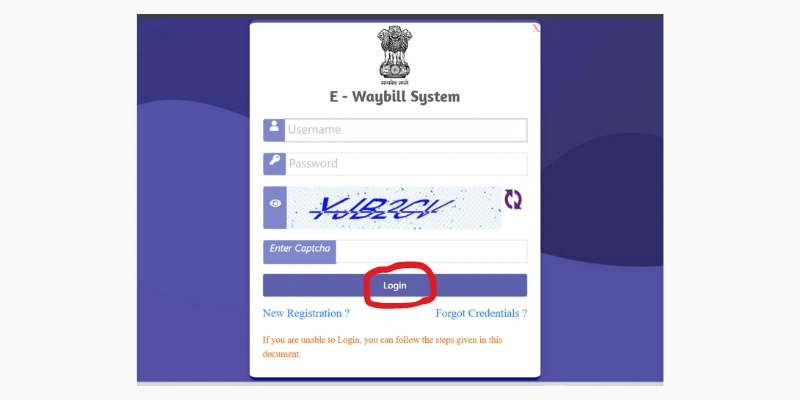
Follow these exact steps to log in to the official e-Way Bill portal. This process works on desktop browsers as well as mobile browsers.
- Open your browser and go to: https://ewaybillgst.gov.in
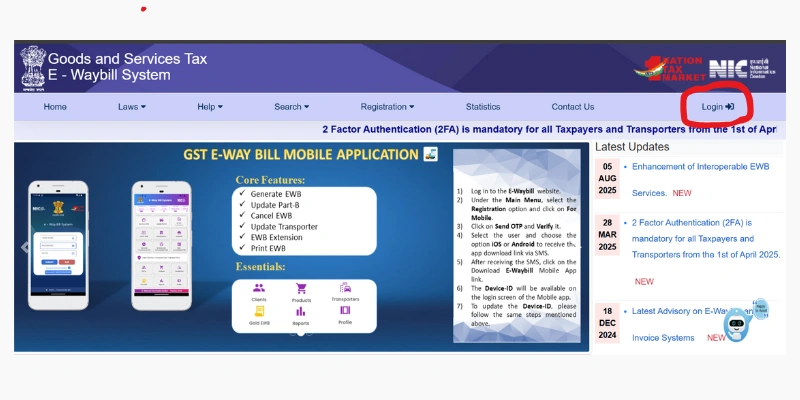
- On the homepage, click the ‘Login’ button located in the top-right corner of the page.
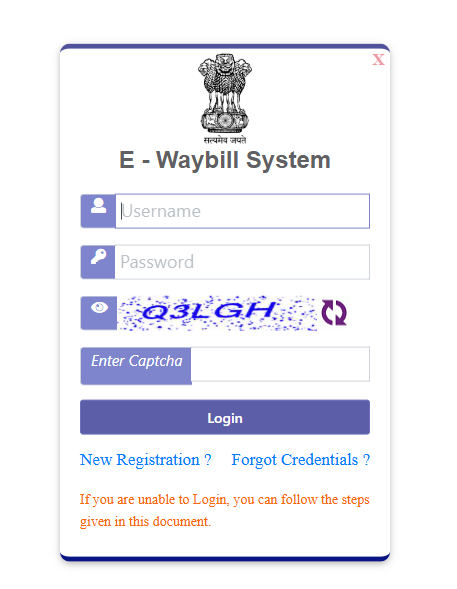
- You will see a login form with three fields: Username, Password, and Captcha.
- Enter your registered Username (your e-Way Bill User ID, not your GSTIN).
- Type your Password carefully. It is case-sensitive.
- Enter the Captcha code exactly as shown in the image. If it is unclear, click the refresh icon next to it.
- Click the ‘Login’ button.
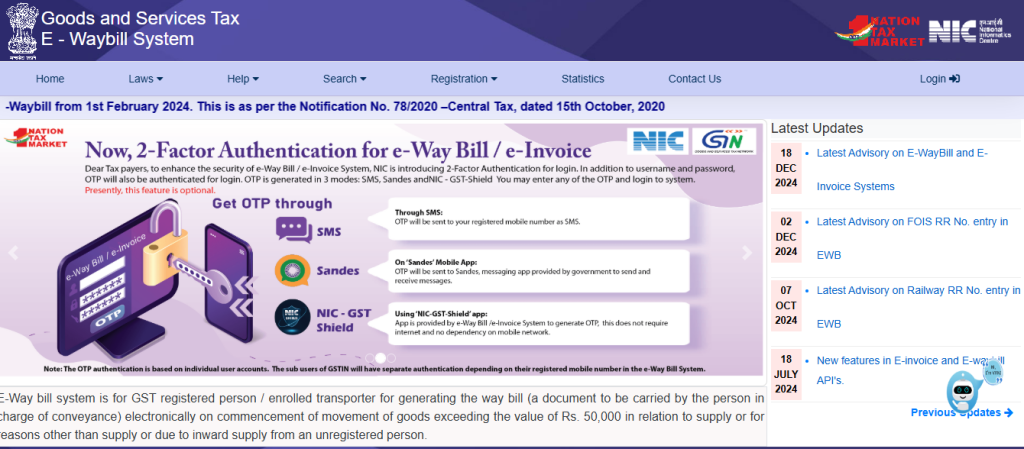
- If 2FA (Two-Factor Authentication) is enabled or mandatory for your account, an OTP will be sent to your registered mobile number. Enter the OTP in the box and click Verify.
- After successful login, you will be taken to your e-Way Bill dashboard showing your GSTIN, legal name, and user type.
If you see a red error message after clicking Login, check: (1) your username is correct, (2) Caps Lock is off, (3) the captcha is entered correctly.
How to Login with 2FA (Two-Factor Authentication) Mandatory from April 2025
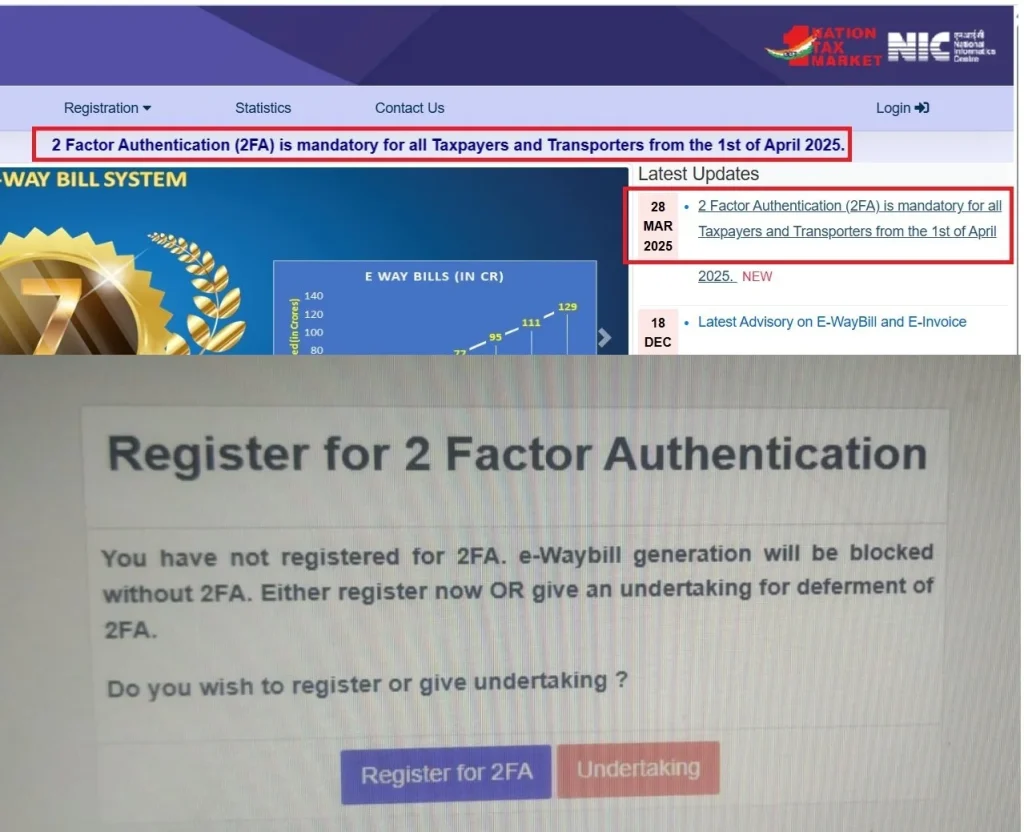
From April 1, 2025, all taxpayers regardless of turnover must use Two-Factor Authentication (2FA) to log in to the e-Way Bill portal. Here is how 2FA works:
- Step 1: Enter your username, password, and captcha as normal.
- Step 2: Click Login. The system will prompt you for an OTP.
- Step 3: The OTP is sent to your GSTIN-registered mobile number via SMS.
- Step 4: You can also receive the OTP through the Sandes app or the NIC-GST-Shield app.
- Step 5: Enter the OTP within the allowed time and click Verify.
If you are not receiving OTP via SMS, you must first register your mobile number for SMS OTP on the portal. Go to Registration > For SMS to activate the SMS facility.
How to Login to E-Way Bill on Mobile Phone
You can access the e-Way Bill portal on your mobile browser. There is no official separate app required the portal works on Chrome or any modern mobile browser.
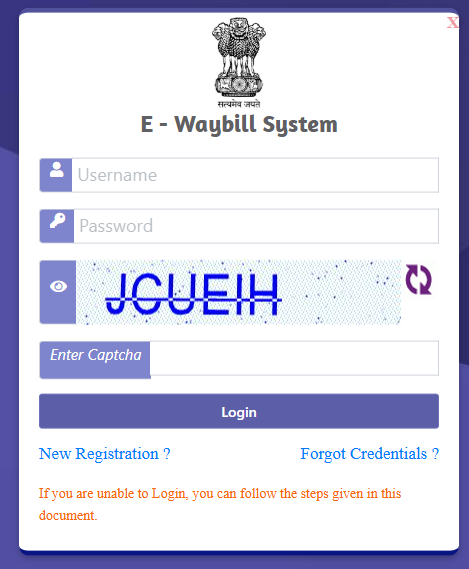
- Open Chrome on your Android or Safari on your iPhone.
- Type ewaybillgst.gov.in in the address bar.
- The mobile version of the portal will load automatically.
- Tap the Login button.
- Enter your Username, Password, and Captcha.
- Enter the OTP when prompted.
- Tap Verify to access your dashboard.
For the best mobile experience, use Chrome on Android. The portal may not work correctly on older or non-standard mobile browsers.
How to Login to E-Way Bill Without OTP
If you have 2FA enabled but cannot receive OTP via SMS (for example, your phone is switched off or you are in a no-network area), you have two alternatives:
- Use the Sandes app: Install the Sandes messaging app (by NIC), link it to your registered mobile number, and receive OTP through the app even without a cellular network.
- Use the NIC-GST-Shield app: This is a time-based OTP app available for Android. Once set up, it generates a 6-digit OTP every 30 seconds without needing internet or SMS. You can use this OTP to log in.
How to Login as a Transporter (TRANSIN Login)
Registered transporters have a Transporter ID called TRANSIN, which is used as their login identity. Follow these steps:
- Go to ewaybillgst.gov.in and click Login.
- In the Username field, enter your Transporter ID (TRANSIN), not your mobile number.
- Enter your password and captcha.
- Complete 2FA if prompted.
- You will see the transporter dashboard where you can update vehicle details and manage e-Way Bills assigned to you.
How to Login as a Citizen (Without GSTIN)
If you are not a registered GST taxpayer but still need to generate an e-Way Bill (for example, for personal goods movement), you can use the Citizen login:
- Go to ewaybillgst.gov.in
- Click on ‘Registration’ in the top menu.
- Select ‘e-Way Bill for Citizens’.
- Enter your mobile number and verify with OTP.
- Fill in your basic details to create a citizen account.
- Once registered, log in with your mobile number as your User ID.
- You can now generate e-Way Bills without a GSTIN.
Forgot User ID, Password or Transporter ID Recovery Steps
How to Recover Forgotten User ID
- Go to ewaybillgst.gov.in and click Login.
- Click on ‘Forgot User ID’ link below the login form.
- Enter your GSTIN in the field provided.
- An OTP will be sent to your registered mobile number.
- Enter the OTP and click Verify.
- Your User ID will be displayed on screen and also sent to your registered mobile number and email.
How to Reset Forgotten Password
- Go to the login page and click ‘Forgot Password’.
- Enter your User ID and GSTIN.
- An OTP will be sent to your registered mobile number.
- Enter the OTP and click Verify.
- You will be prompted to create a new password.
- Your new password must be 8 to 15 characters and contain alphabets, numbers, and at least one special character such as @, #, $, %.
- Confirm the password and click Submit. You can now log in with your new password.
How to Recover Forgotten Transporter ID
- Click on ‘Forgot TransID’ on the login page.
- Enter your PAN number.
- Verify with OTP sent to your registered mobile.
- Your Transporter ID will be displayed and sent to your registered contact details.
E-Way Bill Login Problems Common Errors and Fixes
Login issues are the most searched topic related to e-Way Bill. Here is a list of every common problem and its solution.
Error: Invalid Username or Password
- Check that you are using your e-Way Bill username, not your GSTIN.
- Make sure Caps Lock is off the password is case-sensitive.
- If you have recently changed your password, use the new one.
- If still not working, reset your password using Forgot Password.
Error: Wrong Captcha
- The captcha is case-sensitive. Enter it exactly as shown.
- If the image is blurry, click the refresh or reload icon next to the captcha to get a new one.
- If captcha issues persist, clear your browser cache and try again.
OTP Not Received
- Check if DND (Do Not Disturb) is activated on your mobile DND blocks promotional and transactional SMS from many services.
- Check your network signal. Move to an area with better coverage.
- Wait 2 minutes and click Resend OTP.
- Try logging in using the Sandes app or NIC-GST-Shield app instead of SMS OTP.
- If your mobile number has changed, update it on the GST portal first, then re-register on the e-Way Bill portal.
Error: Account Frozen or Blocked
- Your account gets temporarily frozen after too many incorrect login attempts.
- Wait 30 minutes and try again.
- If the account remains frozen, contact the e-Way Bill helpdesk at 1800-103-4786.
- You can also raise a ticket at the GST Grievance Redressal Portal.
E-Way Bill Site Not Working or Loading Slowly
- First check your internet connection.
- Clear browser cookies and cache (press Ctrl+Shift+Delete on Chrome).
- Try a different browser such as Chrome or Firefox.
- If the primary portal (ewaybillgst.gov.in) is down, switch to the backup portal (ewaybill2.gst.gov.in).
- Check the official GSTN Twitter handle for portal maintenance announcements.
Error: Your GSTIN is Not Registered on the EWB Portal
This happens when a GST taxpayer tries to log in to the e-Way Bill portal but has never registered specifically on the EWB portal. Registering on gst.gov.in does NOT automatically create EWB login credentials. You must separately complete EWB registration.
E-Way Bill Registration How to Register on the Portal for the First Time
If you are using the e-Way Bill portal for the first time, you must complete a one-time registration process. This is separate from your GST registration. The good news is it takes less than 5 minutes.
Who Needs to Register
- All GST registered taxpayers who want to generate e-Way Bills
- Registered transporters
- Unregistered transporters who want to enrol and get a Transporter ID
- Citizens who want to generate e-Way Bills without GSTIN
Documents and Details Needed for Registration
- GSTIN (for taxpayers and registered transporters)
- Registered mobile number linked to GSTIN
- PAN (for unregistered transporters)
- Email address
Step-by-Step Registration for GST Taxpayers
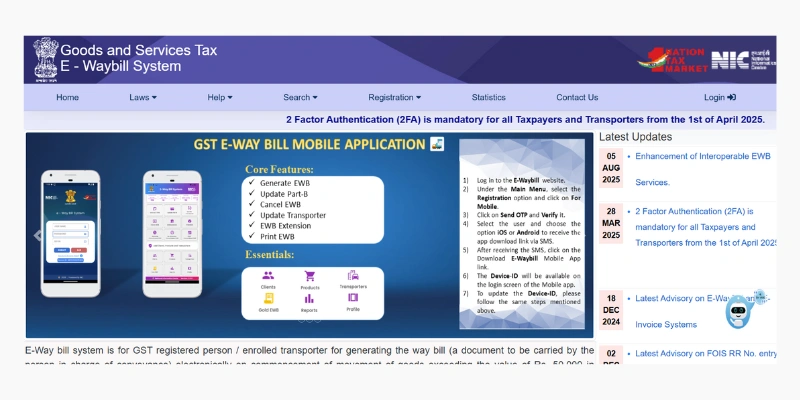
- Go to ewaybillgst.gov.in.
- If a login pop-up appears, close it.
- Click on ‘Registration’ in the top navigation menu.
- Select ‘e-Way Bill Registration’ from the dropdown.
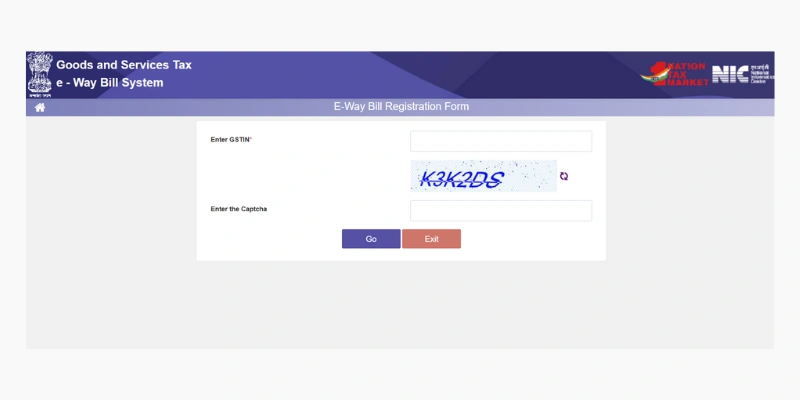
- Enter your 15-digit GSTIN in the field.
- Enter the captcha code shown on screen.
- Click ‘Go’.
- The portal will auto-fill your business name, address, and other details from your GSTIN data.
- An OTP will be sent to your GSTIN-registered mobile number.
- Enter the OTP and click Verify.
- Once verified, you will be asked to create a new User ID.
- Your User ID must be 8 to 15 characters and can include letters, numbers, and special characters (@, #, $, %, &, *, ^).
- Create a strong Password (at least 8 characters with letters, numbers, and special characters).
- Confirm your password and click Update.
- Your e-Way Bill login credentials are now created. Save them safely.
Important: If your business details appear incorrect during registration, you cannot edit them on the EWB portal. You must first update the details on the GST portal (gst.gov.in) and then come back to register.
How to Register as an Unregistered Transporter
- Go to ewaybillgst.gov.in.
- Click ‘Registration’ and select ‘Enrolment for Transporters’.
- Enter your PAN number.
- Fill in your full name, trade name (if any), business address, and contact details.
- Enter your mobile number and verify with OTP.
- Submit the form.
- After successful submission, you will receive a unique Transporter ID (TRANSIN). This is a 15-digit number you will use to log in and be assigned to consignments.
What is Inside an E-Way Bill Components Explained
An e-Way Bill has two main parts: Part A and Part B. Both parts must be filled correctly for the bill to be valid.
Part A Consignment Details
Part A contains all information about the goods and the parties involved. It is filled by the supplier, recipient, or their representative before goods are dispatched.
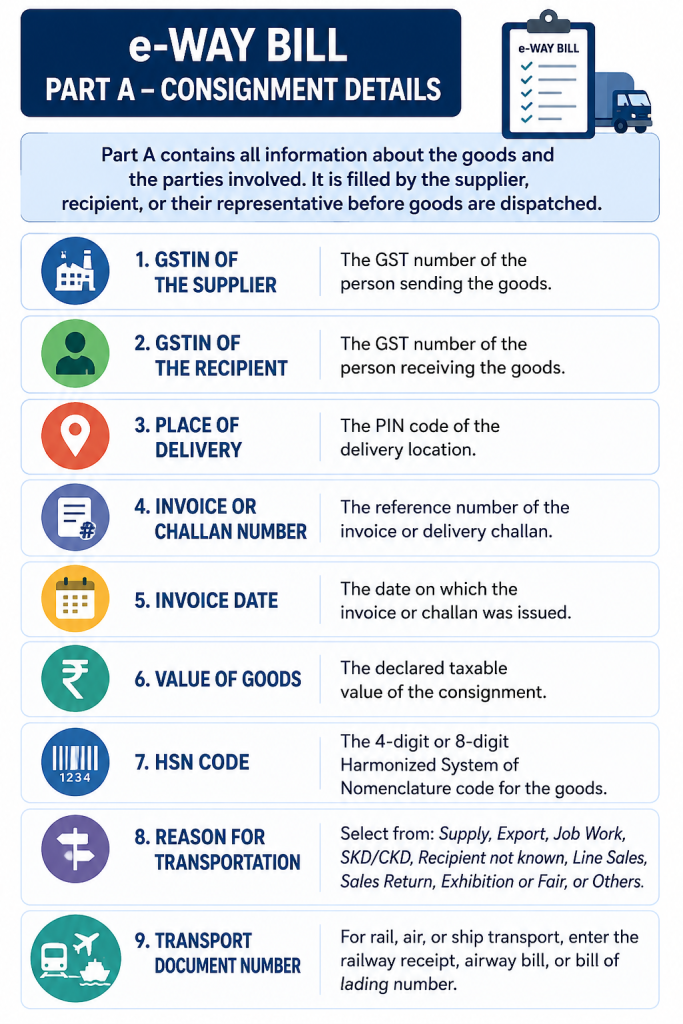
- GSTIN of the Supplier The GST number of the person sending the goods.
- GSTIN of the Recipient The GST number of the person receiving the goods.
- Place of Delivery The PIN code of the delivery location.
- Invoice or Challan Number The reference number of the invoice or delivery challan.
- Invoice Date The date on which the invoice or challan was issued.
- Value of Goods The declared taxable value of the consignment.
- HSN Code The 4-digit or 8-digit Harmonized System of Nomenclature code for the goods.
- Reason for Transportation Select from: Supply, Export, Job Work, SKD/CKD, Recipient not known, Line Sales, Sales Return, Exhibition or Fair, or Others.
- Transport Document Number For rail, air, or ship transport, enter the railway receipt, airway bill, or bill of lading number.
Part B Transporter and Vehicle Details
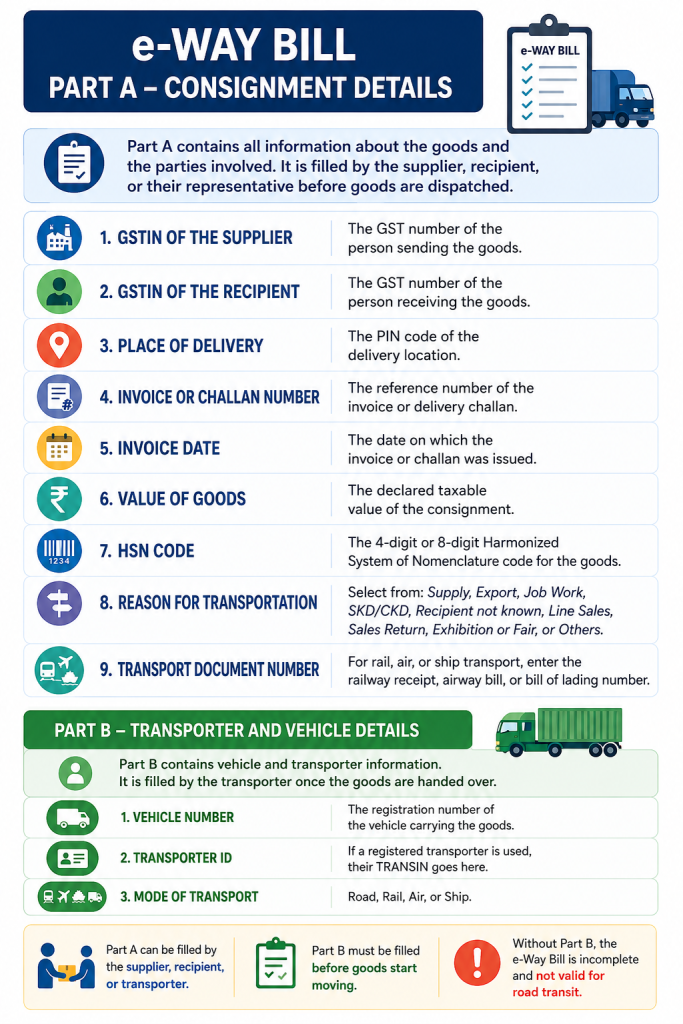
Part B contains vehicle and transporter information. It is filled by the transporter once the goods are handed over.
- Vehicle Number The registration number of the vehicle carrying the goods.
- Transporter ID If a registered transporter is used, their TRANSIN goes here.
- Mode of Transport Road, Rail, Air, or Ship.
Part A can be filled by the supplier, recipient, or transporter. Part B must be filled before goods start moving. Without Part B, the e-Way Bill is incomplete and not valid for road transit.
How to Update Part B After Generation
- Log in to the e-Way Bill portal.
- Go to ‘e-Way Bill’ in the left menu.
- Click ‘Update Part B / Vehicle’.
- Enter the EWB number you want to update.
- Update the vehicle number or transport document details.
- Click Submit.
You can update Part B multiple times for example, if goods are transferred to a different vehicle during transit.
When is an E-Way Bill Required Mandatory vs Optional Cases
Mandatory Scenarios You Must Generate EWB
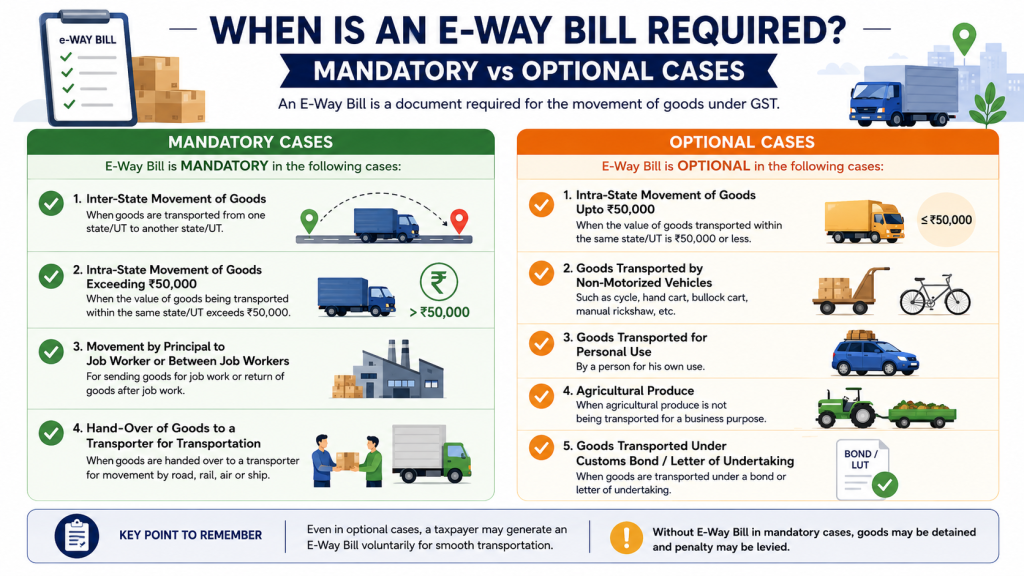
- When goods valued above Rs. 50,000 are moved by a registered GST taxpayer whether for sale, branch transfer, job work, or any other reason.
- When an unregistered supplier sends goods to a registered recipient even if the value is below Rs. 50,000.
- For inter-state movement of goods regardless of whether both parties are GST exempt or not.
- For specific notified goods regardless of their value (for example, certain handicraft goods).
Optional Scenarios You May Generate EWB Voluntarily
- Registered persons can voluntarily generate an EWB for consignments valued at Rs. 50,000 or below.
- Unregistered persons can also generate an EWB voluntarily for easier record-keeping.
Who Should Generate the E-Way Bill
Registered Supplier: The supplier must generate the EWB before dispatching goods worth more than Rs. 50,000.
Registered Recipient: If the supplier is unregistered, the registered recipient takes responsibility for generating the EWB.
Transporter: If neither supplier nor recipient generates the EWB, the transporter must generate it before moving the goods.
When is E-Way Bill NOT Required Full Exemption List
Exempted Goods
- Liquefied petroleum gas (LPG) for domestic and non-domestic exempted use
- Kerosene oil sold under PDS (Public Distribution System)
- Postal baggage transported by the Department of Posts
- Natural or cultured pearls and precious stones
- Jewellery, goldsmiths’ articles, and other articles
- Currency (paper money and coins)
- Used personal and household effects
- Coral (unworked and worked)
- Alcoholic liquor for human consumption
- Petroleum crude, high-speed diesel, motor spirit (petrol), natural gas, and aviation turbine fuel
- Empty cargo containers
- Goods exempted by government notifications (check the official portal for the updated list)
Exempted Transactions
- Goods transported by non-motorised vehicles (e.g., handcarts, bicycles, animal-driven carts)
- Goods moved from a customs port, airport, or air cargo complex to an Inland Container Depot (ICD) or Container Freight Station (CFS)
- Transit cargo moved to or from Nepal or Bhutan
- Goods transported by the Ministry of Defence (military consignments)
- Empty wagons, tank wagons, or freight vehicles returning after delivery
- Goods transported by rail when the consignor is the Central Government, State Government, or a local authority
- Consignment value below Rs. 50,000 when both supplier and recipient are unregistered
- Goods moved within a distance of 20 km to and from a weighbridge, accompanied by a valid Delivery Challan
New 180-Day Rule January 2025
From January 1, 2025, you can only generate an e-Way Bill for invoices or challans dated within the last 180 days. Documents older than 180 days cannot be used to generate a new e-Way Bill. This rule was introduced to prevent the generation of e-Way Bills for old or backdated documents.
How to Generate an E-Way Bill Online Complete Step-by-Step Guide
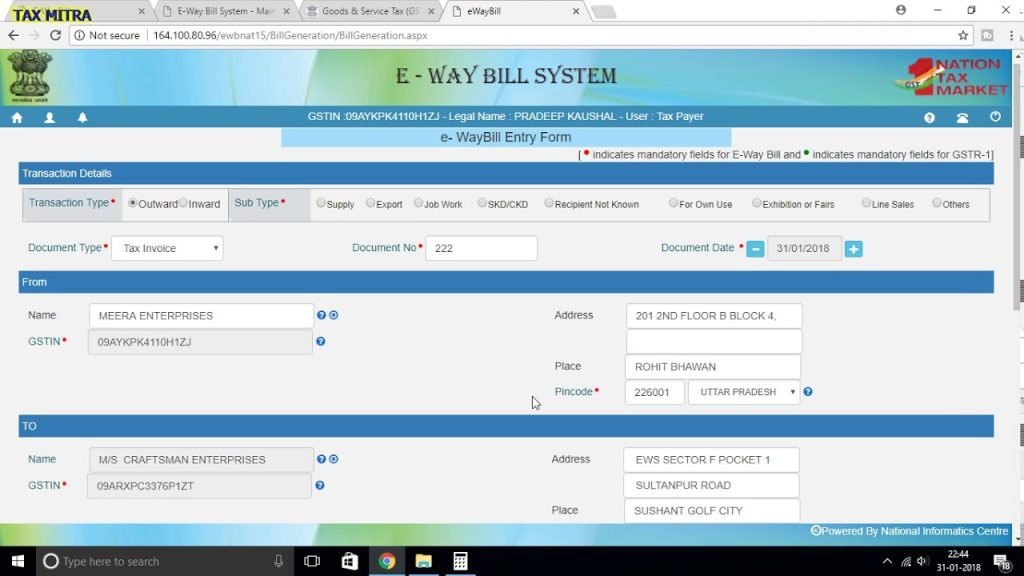
Generating an e-Way Bill is straightforward once you are logged in. Here is the complete process from start to finish.
What You Need Before Generating
- Your e-Way Bill login credentials (User ID and password)
- Invoice number, date, and value of goods
- GSTIN of the supplier and recipient
- HSN code of the goods
- Vehicle number or transporter ID
- Distance between source and destination (approximate)
Step-by-Step: Generate E-Way Bill on the Portal
- Log in to ewaybillgst.gov.in using your User ID, password, and OTP.
- On the left-side menu, click on ‘e-Way Bill’.
- Click ‘Generate New’ from the sub-menu.
- Select the Transaction Type: Outward (if you are the supplier) or Inward (if you are the recipient).
- Select the Sub-type: Supply, Export, Job Work, SKD/CKD, Recipient Not Known, For Own Use, Exhibition or Fairs, Line Sales, Recipient Unknown, or Others.
- Select the Document Type: Tax Invoice, Bill of Supply, Bill of Entry, Challan, Credit Note, Bill of Exchange, or Others.
- Enter the Document Number (invoice number).
- Enter the Document Date.
- Enter the From details: GSTIN of supplier, name, address, and state.
- Enter the To details: GSTIN of recipient, name, address, and state.
- Fill in the Item Details: Product name, Description, HSN code, Quantity, Unit, Value, Tax rate (CGST, SGST, IGST, Cess).
- Enter the Transporter Details: Mode of transport (Road/Rail/Air/Ship), Vehicle number or Transporter ID, and distance in km.
- Click ‘Submit’. The system will validate all the entered details.
- If there are no errors, the e-Way Bill will be generated with a unique EBN number. Note down this number.
- You can now print or download the e-Way Bill.
If the system shows a validation error, read the error message carefully. Common errors include incorrect GSTIN, HSN code mismatch, or invoice date outside the 180-day window.
How to Generate E-Way Bill on Mobile
- Open ewaybillgst.gov.in in your mobile browser.
- Log in with your User ID and password.
- Tap ‘e-Way Bill’ from the menu.
- Tap ‘Generate New’.
- Fill in all the required fields as described above.
- Tap Submit. The EWB will be generated and displayed on your screen.
- Save or share the EWB number with the transporter.
How to Generate E-Way Bill via SMS
You can generate, update, or cancel e-Way Bills via SMS from your registered mobile number. This is useful when you do not have internet access.
- First, activate the SMS facility: Go to Registration > For SMS on the portal and verify your mobile number.
- To generate: Send an SMS to 77382 99899 in the format: EWBG TranType RecGSTIN DelPinCode ItemHSNCode ApproxValue VehicleNo.
- On successful generation, you will receive the EWB number via SMS reply.
The exact SMS format is available on the official portal under the Help section. SMS generation is suitable for simple consignments only.
How to Generate Consolidated E-Way Bill
When a single vehicle carries multiple consignments, each with its own e-Way Bill, you can combine them into one Consolidated EWB (Form GST EWB-02) for easier compliance during transit.
- Log in and go to ‘Consolidated EWB’ in the menu.
- Click ‘Generate Consolidated EWB’.
- Enter the vehicle number.
- Add all the individual EWB numbers for the consignments in that vehicle.
- Click Submit.
- A single Consolidated EWB will be generated covering all the consignments.
How to Generate E-Way Bill Without Login Citizen Mode
- Go to ewaybillgst.gov.in.
- Click ‘Registration’ > ‘e-Way Bill for Citizens’.
- Enter your mobile number and verify with OTP.
- Once inside, click ‘Generate New EWB’.
- Fill in goods details, origin, destination, and vehicle details.
- Submit to generate the EWB without needing a GSTIN.
How to Print and Download E-Way Bill
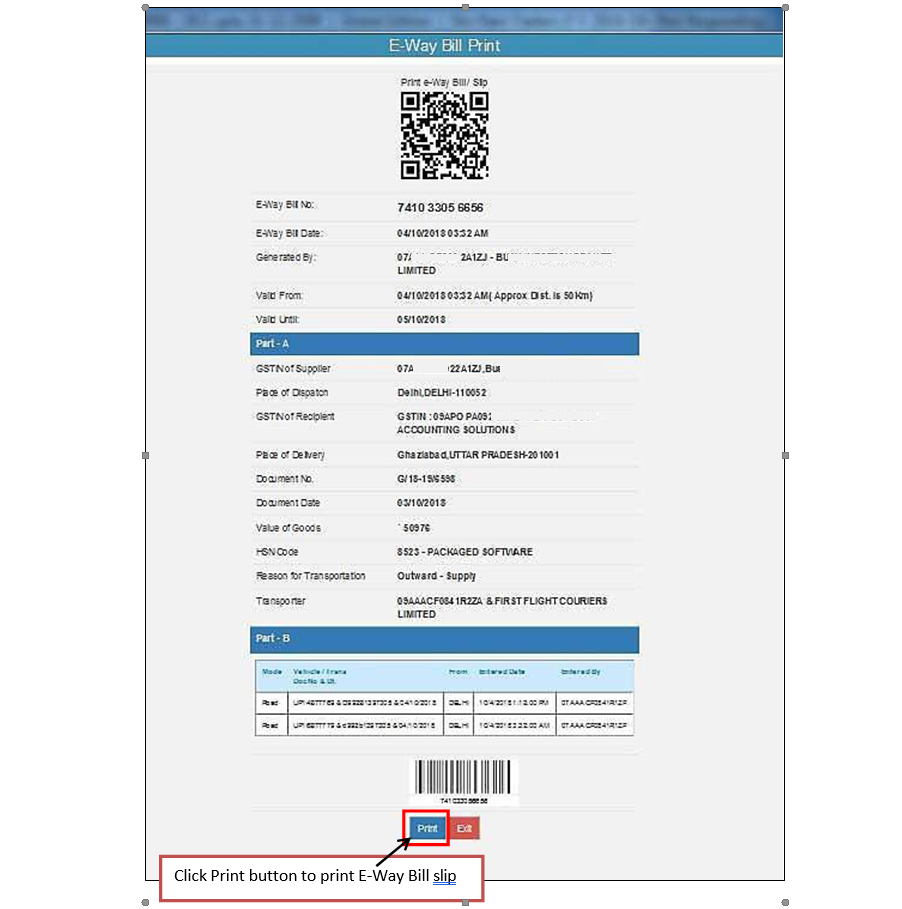
How to Print E-Way Bill from the Portal
- Log in to the e-Way Bill portal.
- Go to ‘e-Way Bill’ > ‘Print EWB’.
- Enter the EWB number and click Go.
- The e-Way Bill will be displayed on screen.
- Click the ‘Print’ button to print it directly.
- You can also right-click and select ‘Print’ or use Ctrl+P.
How to Download E-Way Bill as PDF
- After the EWB is displayed on screen, click ‘Download PDF’ if the option is available.
- Alternatively, use your browser’s Print function and select ‘Save as PDF’ as the printer destination.
- Save the PDF to your device.
Basic Print vs Detailed Print
- Basic Print: Shows the key EWB details EBN, parties involved, goods description, vehicle number, and validity.
- Detailed Print: Shows all fields including tax breakup, HSN details, and transporter information. Recommended when the tax officer requires full details.
How to Get a Copy of a Lost or Old E-Way Bill
- Log in to the portal.
- Go to ‘e-Way Bill’ > ‘Print EWB’.
- Enter the EWB number. You can find old EWB numbers in your generation history under ‘Reports’.
- The portal will display the EWB and allow you to print or download it again.
E-Way Bills remain accessible on the portal for a specified period. If you cannot find a very old EWB, contact the helpdesk.
How to Check E-Way Bill Status and Track Shipment
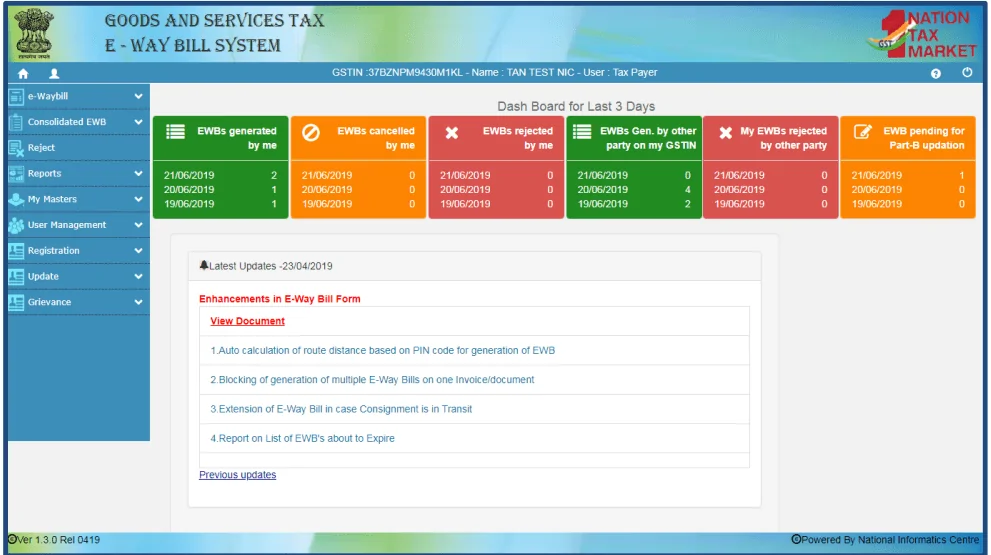
How to Check E-Way Bill Status Without Login
- Go to ewaybillgst.gov.in.
- On the homepage, look for the ‘Search’ section or ‘e-Way Bill Status’ option.
- Enter the EWB number.
- Click Submit. The status and details of the EWB will be displayed without needing to log in.
E-Way Bill Status Meanings
| Status | What It Means |
| Generated | The EWB has been created. Goods have not yet started moving. |
| In Transit | Goods are currently being transported. |
| Delivered | Goods have reached the destination. EWB is fulfilled. |
| Cancelled | The EWB has been cancelled by the generator. |
| Expired | The EWB validity period has ended. Goods must not be moved. |
| Rejected | The recipient has rejected the EWB within 72 hours of generation. |
E-Way Bill Validity How Long is It Valid?
The validity of an e-Way Bill depends on the distance the goods must travel and the type of vehicle being used. Validity begins from the moment Part B (vehicle details) is entered.
Validity Table
| Type of Vehicle | Distance | EWB Validity |
| Regular Vehicle (Non-ODC) | Less than 200 km | 1 Day |
| Regular Vehicle (Non-ODC) | Every additional 200 km or part | +1 Day |
| Over-Dimensional Cargo (ODC) | Less than 20 km | 1 Day |
| Over-Dimensional Cargo (ODC) | Every additional 20 km or part | +1 Day |
Example: A regular vehicle carrying goods over 450 km will have an EWB validity of 3 days (1 day for first 200 km + 1 day for next 200 km + 1 day for remaining 50 km).
How to Extend E-Way Bill Validity
- Log in to the e-Way Bill portal.
- Go to ‘e-Way Bill’ > ‘Extend Validity’.
- Enter the EWB number.
- The system will show the current validity and extension options.
- Enter a reason for extension (for example, vehicle breakdown, natural calamity, accident).
- Submit the extension request.
You can extend the validity up to 8 hours before it expires or within 8 hours after it expires. From January 2025, the maximum total extension is capped at 360 days from the original generation date.
What Happens When an E-Way Bill Expires in Transit
If an EWB expires while goods are still in transit, the goods cannot legally continue moving until the validity is extended. The transporter must stop, contact the original generator, and get the EWB extended before proceeding. Carrying goods with an expired EWB can attract penalties.
How to Cancel an E-Way Bill Step-by-Step
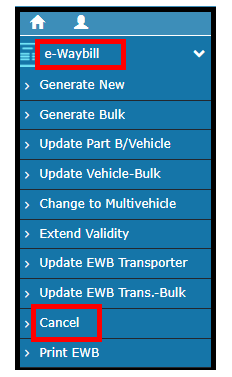
If you generated an EWB by mistake, entered wrong details, or the transaction is cancelled, you must cancel the EWB to avoid compliance issues. The cancellation window is 24 hours from the time of generation.
Step-by-Step Cancellation Process
- Log in to ewaybillgst.gov.in.
- Go to ‘e-Way Bill’ in the left menu.
- Click ‘Cancel’.
- Enter the 12-digit EWB number you want to cancel.
- Click Go. The EWB details will appear on screen.
- Select a valid reason for cancellation from the dropdown: Duplicate, Data Entry Mistake, Order Cancelled, or Others.
- Click Submit to confirm the cancellation.
Once an EWB is cancelled, the EBN becomes permanently invalid and cannot be reused. You must generate a fresh EWB if needed.
What Happens If You Miss the 24-Hour Cancellation Window
If 24 hours have passed since generation, the system will not allow cancellation. In this case, you should contact the helpdesk. The EWB will remain active in the system. Make sure all goods transported under this EWB are correctly documented to avoid future discrepancies.
Can the Recipient Reject an E-Way Bill
Yes. The recipient of the goods has a 72-hour window after EWB generation (or until the goods are delivered, whichever is earlier) to reject the EWB if they find any issues such as incorrect goods details or if the delivery was not received. To reject:
- Log in as the recipient.
- Go to ‘e-Way Bill’ > ‘Reject’.
- Enter the EWB number.
- Select a reason and confirm rejection.
State-Wise E-Way Bill Rules and Threshold Limits
While the central rule mandates EWB for inter-state goods movement above Rs. 50,000, each state has set its own limits for intra-state movement. Here is a reference table:
| State | Intra-State Threshold | Special Notes |
| Andhra Pradesh | Rs. 50,000 | Standard limit |
| Bihar | Rs. 1,00,000 | |
| Delhi | Rs. 1,00,000 (Rs. 25,000 for select goods) | Applies to certain categories |
| Goa | Rs. 50,000 | |
| Gujarat | Rs. 50,000 | Standard limit |
| Karnataka | Rs. 50,000 | Applies to all taxable goods |
| Kerala | Rs. 1,00,000 | |
| Maharashtra | Rs. 1,00,000 | |
| Punjab | Rs. 1,00,000 | |
| Rajasthan | Rs. 1,00,000 | |
| Tamil Nadu | Rs. 1,00,000 | |
| Uttar Pradesh | Rs. 1,00,000 |
State thresholds are subject to change. Always verify the latest limits on the official state GST or e-Way Bill portal before generating bills for intra-state movement.
State-Specific Login Pages
All states use the same central e-Way Bill portal: ewaybillgst.gov.in. There is no separate state portal for login. However, some states have their own tax portals for additional state-specific compliance. For e-Way Bill generation and login, always use the central portal.
Two-Factor Authentication (2FA) on E-Way Bill Portal Complete Guide
From April 1, 2025, 2FA is mandatory for all taxpayers using the e-Way Bill portal regardless of their annual turnover. This is one of the most important changes to know in 2025.
2FA Rollout Timeline
- From January 1, 2025: Mandatory for taxpayers with AATO above Rs. 20 crore.
- From February 1, 2025: Mandatory for taxpayers with AATO between Rs. 5 crore and Rs. 20 crore.
- From April 1, 2025: Mandatory for ALL taxpayers regardless of turnover.
How to Set Up 2FA on E-Way Bill Portal
- Log in to the portal.
- Go to ‘My Profile’ or ‘2FA Settings’.
- Register your mobile number for OTP.
- Alternatively, download the Sandes app from the App Store or Play Store, link your mobile number, and use it for OTP.
- For the most secure option, download the NIC-GST-Shield app and link it to your EWB account. This generates offline TOTP codes.
What is the NIC-GST-Shield App
NIC-GST-Shield is a free TOTP (Time-Based One-Time Password) app developed by NIC specifically for GST and e-Way Bill users. Once set up, it generates a 6-digit OTP every 30 seconds without needing SMS or internet connection. This is the most reliable method for 2FA on the e-Way Bill portal.
E-Way Bill Portal Features What Can You Do After Login
Once you are logged in to the e-Way Bill portal, the dashboard gives you access to a wide range of features. Here is what each menu option does:
E-Way Bill Menu
- Generate New Create a new single e-Way Bill.
- Generate Bulk Upload a JSON file to generate multiple EWBs at once.
- Update Part B / Vehicle Update vehicle number or transport details on an existing EWB.
- Extend Validity Extend the validity period of an active EWB.
- Cancel Cancel an EWB within 24 hours of generation.
- Print EWB Print or download an EWB by its number.
- Get EWB by Others View EWBs generated by other parties in which you are the recipient or transporter.
Consolidated EWB Menu
- Generate Consolidated EWB Group multiple EWBs under one consolidated bill for a single vehicle.
- Regenerate Consolidated EWB Recreate a consolidated EWB if the original is expired.
- Update Vehicle in Consolidated EWB Change the vehicle number for a consolidated EWB.
Reports Menu
- My EWB Report View all EWBs you have generated, filtered by date.
- Other Party EWB Report View EWBs where you are the recipient or transporter.
- EWB by Vehicle Search EWBs by vehicle number.
- Statistics View summary data of EWBs generated under your GSTIN.
My Masters Section
The My Masters section allows you to save frequently used data to speed up EWB generation. Instead of typing the same details every time, you can save and auto-fill:
- Clients/Customers Save recipient GSTIN, name, and address.
- Suppliers Save supplier details.
- Products Save product name, HSN code, and unit of measurement.
- Transporters Save transporter ID, name, and vehicle details.
E-Way Bill Rules, Penalties and GST Compliance
What Happens If You Transport Goods Without an E-Way Bill
If goods are transported without a valid e-Way Bill when one is required, the following consequences apply:
- The goods can be detained by GST officers at any checkpoint.
- A penalty equal to the tax amount on the goods (minimum Rs. 10,000) can be imposed.
- The vehicle can be confiscated until the penalty is paid.
- The goods themselves may be confiscated if the penalty is not paid within a specified time.
Rules for Transporters
- The transporter must carry a physical or digital copy of the e-Way Bill or the EBN at all times during transit.
- If a vehicle is changed mid-journey (for example, due to breakdown), the transporter must update Part B with the new vehicle number before the goods continue moving.
- A consolidated EWB must be generated if multiple consignments from different suppliers are loaded in the same vehicle.
GST Officer Verification
GST officers at checkpoints can verify e-Way Bills using a scanner to read the QR code printed on the EWB. The QR code contains the EBN and key details of the consignment, making verification instant and paperless.
Frequently Asked Questions
What is the official e-Way Bill login URL?
The official URL is https://ewaybillgst.gov.in. The backup portal launched in July 2025 is https://ewaybill2.gst.gov.in. Both are government portals maintained by NIC.
What is the difference between ewaybillgst.gov.in and ewaybill.nic.in?
ewaybill.nic.in is the old URL. It now automatically redirects to ewaybillgst.gov.in. Both URLs take you to the same portal. Use ewaybillgst.gov.in directly.
Can I use my GST portal login credentials on the e-Way Bill portal?
No. Your GST portal (gst.gov.in) credentials are separate. You must complete a one-time registration on the e-Way Bill portal to create EWB-specific login credentials.
Is 2FA mandatory for all users in 2025?
Yes. From April 1, 2025, Two-Factor Authentication (2FA) is mandatory for all GST taxpayers using the e-Way Bill portal, regardless of their annual turnover.
Can I generate an e-Way Bill without a GSTIN?
Yes. Citizens who are not registered under GST can generate e-Way Bills using the Citizen login mode on the portal. You only need your mobile number for OTP verification.
What is the maximum validity of an e-Way Bill?
For a regular vehicle, the validity is 1 day for every 200 km of distance (or part thereof). From January 2025, the maximum extension allowed is capped at 360 days from the original generation date.
Can an e-Way Bill be modified after generation?
No. Once generated, Part A of the EWB cannot be edited. You must cancel it within 24 hours and generate a new one. However, Part B (vehicle details) can be updated multiple times.
What should I do if the e-Way Bill portal is not working?
Switch to the backup portal at ewaybill2.gst.gov.in. Both portals are synced in real time, so all your data is available on both. If both portals are down, contact the helpdesk at 1800-103-4786.
Is e-Way Bill required for goods below Rs. 50,000?
Generally no, but there are exceptions. If the supplier is unregistered and the recipient is registered, an EWB is required even if the value is below Rs. 50,000. Also, for certain notified goods, EWB is required regardless of value.
How do I check if my e-Way Bill is still valid?
Go to ewaybillgst.gov.in and use the EWB Status check (available without login). Enter your EWB number to see its current status and expiry time.
What is the EWB number (EBN)?
EBN stands for e-Way Bill Number. It is a unique 12-digit number generated by the portal when you successfully create an e-Way Bill. It is used by the supplier, recipient, and transporter to track and verify the consignment.
About This Guide
This guide on ewaybill.org is written for GST taxpayers, business owners, accountants, transporters, and logistics professionals across India who use the e-Way Bill system daily. Every step, rule, and explanation in this guide is based on official GSTN advisories, NIC announcements, and the Government of India’s GST framework as updated through 2025-26.
- Last Updated: June 2026
- Sources: Official GSTN advisories, ewaybillgst.gov.in, NIC India, GST Council notifications
- Content verified against: GSTN advisory dated December 17, 2024 | GSTN advisory dated June 16, 2025
ewaybill.org is an independent information portal providing guidance on India’s GST e-Way Bill system. This website is not affiliated with the Government of India, GSTN, or NIC. For official transactions, always use ewaybillgst.gov.in.